Website Accessibility Basics: A Beginner's Practical Guide
Website Accessibility Basics: A Beginner’s Practical Guide

Website accessibility means designing and building your site so everyone, including people using screen readers, keyboard-only navigation, or low-bandwidth connections, can perceive, operate, and understand its content. That definition comes straight from the W3C’s WCAG standard, built around four principles known as POUR: perceivable, operable, understandable, and robust. If you’re starting today, your single highest-impact move is a quick automated accessibility scan of your homepage, then fixing whatever it flags first: missing alt text and broken heading structure.
Here’s what that first pass usually turns up:
- Images with no alt text, or alt text that just says “image1234.jpg”
- Headings used for visual styling (bold, large text) instead of actual H1/H2/H3 tags
- Buttons and links with vague labels like “click here”
We work through this exact process with clients at Moderatemurmurations, and it rarely takes more than an hour to knock out the first round of fixes.
Key Takeaways
Website accessibility works when semantic structure, alt text, keyboard access, and color contrast are handled together, not as isolated fixes.
| Point | Details |
|---|---|
| Start with a scan | Run an automated accessibility scan first to catch missing alt text and broken heading structure fast. |
| Follow POUR | Perceivable, operable, understandable, and robust design covers nearly every WCAG success criterion. |
| Target WCAG AA | AA conformance is the practical, achievable standard for most small business and creator sites. |
| Test manually too | Automated tools miss real problems; pair them with keyboard-only and screen reader checks. |
| Build it in early | Moderatemurmurations integrates accessibility into design and content from the start, rather than patching it on after launch. |
Table of Contents
- What Web Accessibility Basics Mean for Your Site
- What Are the Four POUR Principles in WCAG?
- How Do You Make a Website Accessible? A Practical Checklist
- How Do You Test a Website for Accessibility?
- What Accessibility Mistakes Do Beginners Make Most Often?
- Where to Learn More About Web Accessibility Guidelines
- What We’ve Learned Building Accessible Sites From Day One
- Get Accessibility Built Into Your Next Website
- Sources
What Web Accessibility Basics Mean for Your Site
Accessibility isn’t a niche concern for a small slice of visitors. It affects people with permanent disabilities (blindness, motor impairments, deafness), people with temporary limitations (a broken arm, eye strain), and people in circumstances that have nothing to do with disability at all, like a parent one-handed scrolling with a baby asleep on their shoulder, or someone on a slow rural connection who can’t load a heavy image carousel. Seniors navigating a site with an unfamiliar layout benefit just as much as someone using a screen reader.
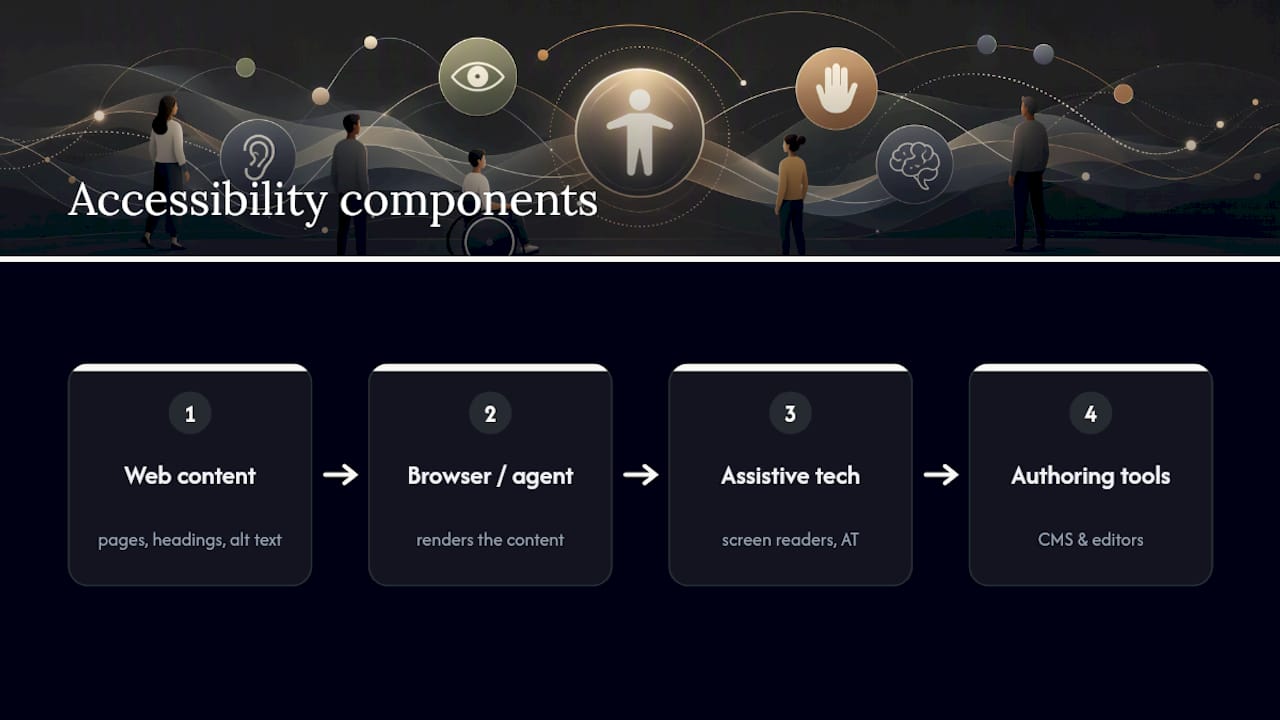
Making this work in practice depends on four components operating together: your web content, the browser or “user agent” rendering it, any assistive technology the visitor relies on, and the authoring tools you used to build the site in the first place. The W3C explains that a failure in any one of these four pieces can break accessibility even if the other three are solid. A perfectly coded page still fails if the visitor’s screen reader can’t parse it, or if your CMS strips semantic tags on save.
There’s a practical upside beyond doing right by your visitors. Search engines read your site much the way assistive technology does, parsing headings, alt text, and link structure to understand what’s on the page. Clean up your site for accessibility, and you’ll often see your SEO foundations improve as a side effect.
What Are the Four POUR Principles in WCAG?
WCAG organizes every accessibility requirement under four principles, and each one answers a different practical question about your site.
- Perceivable: Can people actually sense the content? A photo needs alt text; a video needs captions.
- Operable: Can people navigate and interact without a mouse? Every action should work with a keyboard alone.
- Understandable: Is the content and interface predictable? Form errors should explain what went wrong in plain language, not a generic “invalid input.”
- Robust: Does it work across browsers and assistive tech, now and as those tools update? Clean, semantic HTML is what makes this durable.
Within POUR, WCAG sets three conformance levels: A (minimum), AA (mid-range), and AAA (highest, and often impractical for general content). AA is the level most legal standards and practitioner guidance point to, and it’s the realistic target for the vast majority of small business and creator sites. Each POUR principle breaks down into specific, testable success criteria, which is exactly why a scan tool can check your contrast ratio but can’t tell you whether your form’s error message actually makes sense to a first-time visitor.
How Do You Make a Website Accessible? A Practical Checklist
Once you understand POUR, the real work is translating it into decisions you make on every page. Here’s the priority order we walk clients through:
- Write alt text with purpose. Keep it concise, typically under 150 characters, and describe what the image is doing in context rather than just what it shows. Use
alt=""for purely decorative images so screen readers skip them. Charts and diagrams need a short alt tag plus a longer description or data table nearby. - Use real headings and landmarks. H1 through H6 tags should reflect actual document structure, not font size. Never fake a heading by just bolding text, and use ARIA attributes only when semantic HTML genuinely can’t do the job.
- Make everything keyboard-operable. Tab through your own site. Focus order should follow a logical path, focus states need to be visibly highlighted, and a skip link should let keyboard users jump past the navigation menu.
- Label every form field. Pair each input with a visible label, give clear instructions before a mistake happens, and write error messages that name the actual problem.
- Check your color contrast. Never rely on color alone to signal an error or a status. Add an icon or text label alongside the color so colorblind visitors get the same information.
- Add captions and transcripts to video and audio. This helps deaf and hard-of-hearing visitors, and Section 508 guidance notes it improves searchability for everyone else too.
Pro Tip: Build your skip-to-content link before you build anything else. Retrofitting it later almost always gets skipped entirely once launch pressure hits.
How Do You Test a Website for Accessibility?
Automated scanners are a fast first pass, not a finish line. Site-wide crawlers and browser extensions catch missing alt attributes, low contrast ratios, and empty form labels reliably. What they can’t catch is whether your reading order actually makes sense, or whether your alt text describes the right thing. WebAIM’s guidance is blunt about this: automated tools alone miss a large share of real-world accessibility problems, and knowledgeable human review closes that gap.
Run these manual checks after your automated scan:
- Navigate your whole site using only the Tab, Shift+Tab, and Enter keys
- Turn on a screen reader (VoiceOver on Mac, NVDA on Windows) and listen to your homepage and one form
- Use a color-blindness simulator on your key call-to-action buttons
- Submit a form incorrectly and confirm the error message is clear and announced
If you’ve fixed the obvious issues and still aren’t confident, that’s the point to bring in a human auditor or run a short session with a real assistive-tech user. Tackle high-impact, low-effort fixes first: alt text and heading structure before you chase AAA-level contrast on decorative elements.
What Accessibility Mistakes Do Beginners Make Most Often?
The most common mistake we see is treating accessibility as a plugin you bolt on after launch. Overlay widgets that promise instant compliance routinely miss keyboard navigation and semantic structure problems that live in the code itself, not the surface layer they patch. Accessibility built into your wireframes and content plan from day one always outperforms a late-stage fix.

Alt text has its own pitfalls: don’t start every description with “image of,” don’t cram in irrelevant detail, and don’t write it in the wrong language for a multilingual site. AI tools can draft a starting point, but a human still needs to check that the description matches what the image is actually doing on the page.
Pro Tip: Add a skip-to-content link and test your site with keyboard-only navigation and at least one screen reader before you call anything “done.”
Accessibility is never a one-time checkbox. It’s an ongoing commitment that raises the quality of your site for every visitor, including seniors, low-bandwidth users, and everyone in between.
Our launch checklist walks through exactly where these checks fit into a real project timeline.
Where to Learn More About Web Accessibility Guidelines
Start with the W3C’s WCAG overview for the full standard and its quick reference tool, and review Section 508 guidance if you need to understand US public-sector requirements. WebAIM’s introduction to web accessibility is a solid next stop for manual testing methodology. For WordPress builders specifically, this guide to inclusive design in WordPress covers plugin and theme considerations we don’t get into here. Our own launch checklist turns all of this into a step-by-step sequence.
What We’ve Learned Building Accessible Sites From Day One
On a recent small business launch, we caught a keyboard trap in the navigation menu during our pre-launch review, something an automated scan hadn’t flagged. Most small business constraints come down to timeline, not ambition, so we build accessibility into the wireframe stage rather than treating it as a final pass. Our launch checklist reflects that sequencing.
— Christopher
Get Accessibility Built Into Your Next Website
Moderatemurmurations builds accessibility into your site from the wireframe stage, so you’re not paying twice: once to launch, and again to fix what an overlay plugin never actually caught.
A free consultation starts with a quick audit of your current site (or your plan for a new one), followed by a prioritized list of fixes ranked by impact and effort, and accessible templates for your pages and forms so future updates stay compliant without extra work on your end. You’ll walk away knowing exactly what needs attention first and what can wait. If you’re ready to launch a site that works for every visitor from day one, book your free consultation and tell us where your project stands.